
SPI-D Digital Speedometer: SimHub Plugin Setup Guide
The SPI-D SimHub plugin lets SimHub drive your SPI-D displays directly, without SimDash. It is set up once in a few steps and then works with every game supported by SimHub.
1. Download the plugin
Download User.SPID.zip.
2. Copy User.SPID.dll into the SimHub folder
Close SimHub, then copy User.SPID.dll into the SimHub installation folder
(C:\Program Files (x86)\SimHub\,
unless you installed SimHub somewhere else).
Windows may ask for administrator permission to copy into this folder: click Continue.
3. Start SimHub and enable the plugin
Start SimHub. It detects the new plugin and asks whether to enable it. Make sure SPI-D Display is switched on, leave Show in left main menu on, and click Ok.
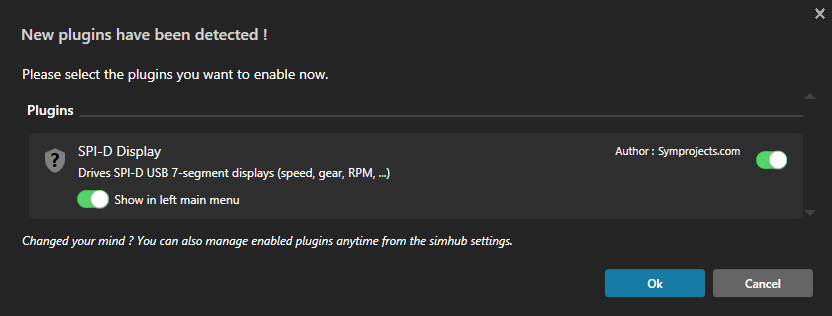
SimHub asks to enable the new plugin: click Ok (click the picture to enlarge).
If you clicked Cancel by mistake, you can enable the plugin later from SimHub's Settings.
A display must be driven by one program only. If SimDash keeps running alongside SimHub, for example because it controls other devices, disable the SPI-D plugin in SimDash. Otherwise SimDash and SimHub will both send data to the display.
4. Configure your displays
Click SPI-D in SimHub's left menu. Every SPI-D you plug in appears automatically in the list at the top, with a green dot when it is connected. Select a display to configure it. Each display has its own settings, so you can connect several and show something different on each one.
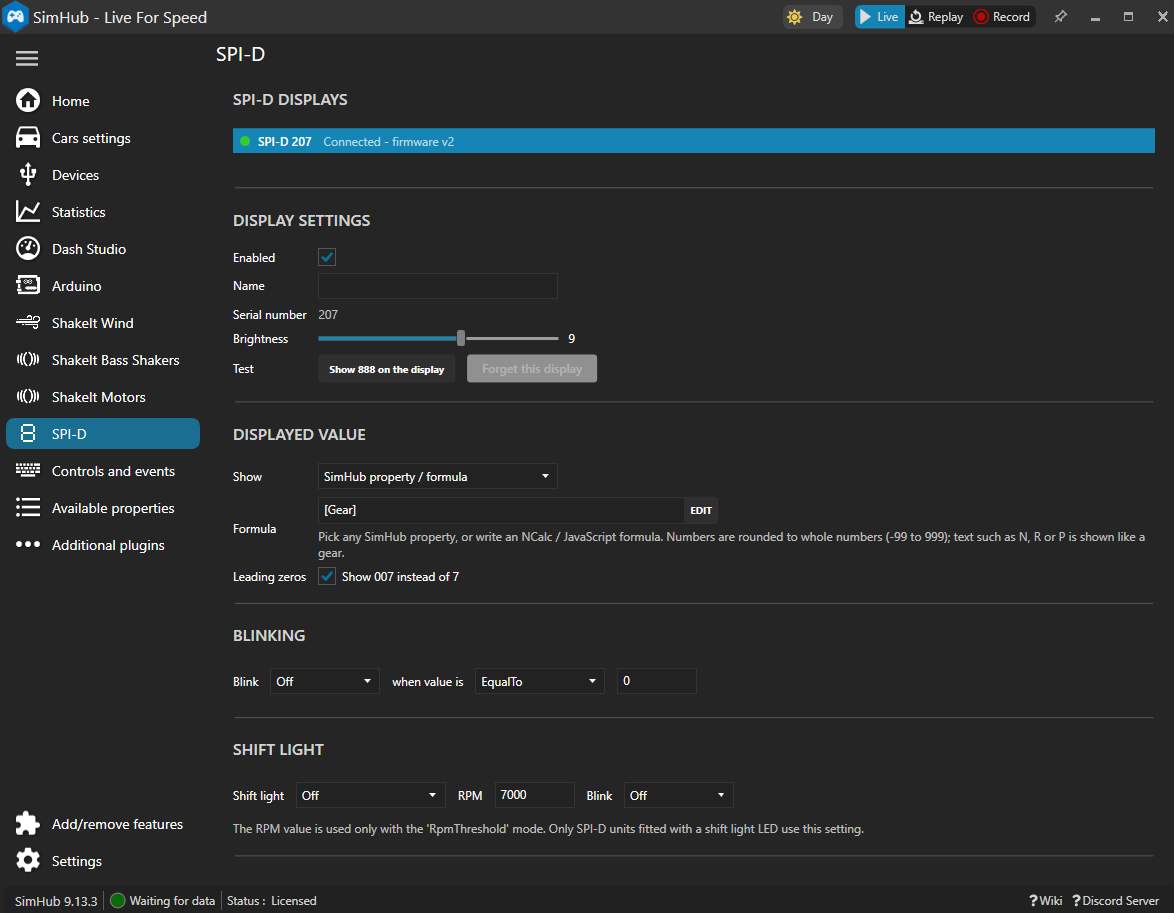
The SPI-D configuration screen (click the picture to enlarge).
If you have used SPI-D with SimDash, you will find the same options: brightness, displayed value and unit, leading zeros, blinking and shift light. In addition, the SimHub plugin can show any SimHub property or the result of an NCalc or JavaScript expression.
- Enabled / Name: switch a display off, or give it a name to tell several displays apart.
- Brightness: 0 to 15, applied immediately.
- Test: Show 888 on the display lights every segment, to check which display is which.
- Show: the value to display, unit included: Speed (km/h), Speed (mph), Gear, RPM, RPM (/10), RPM (/100), RPM %, fuel, fuel %, position, current lap, oil and water temperature (°C or °F), oil pressure.
- Leading zeros: show 007 instead of 7.
- Blinking: make the display blink (slow, normal or fast) when the value is greater than, less than or equal to a number of your choice, for example low fuel.
- Shift light: for SPI-D units fitted with a shift light LED, light it at the game's redline or at an RPM of your choice, optionally blinking.
Showing a SimHub property or an NCalc expression
Choose SimHub property / formula in the Show list, then click EDIT. SimHub opens its own property picker, the same one used in Dash Studio. You can:
- pick any property from the list, including properties provided by other plugins;
- write an NCalc expression, for example:
[DataCorePlugin.GameData.SpeedKmh] / 10
if([DataCorePlugin.GameData.Gear] = 'N', 0, [DataCorePlugin.GameData.Rpms] / 100) - or switch the editor to JavaScript.
Numbers are rounded to whole numbers from -99 to 999. Text results such as N, R or P are shown like a gear.