
Pro-Shift controller: SimHub Plugin Setup Guide
The Pro-Shift SimHub plugin lets SimHub drive the 16 LEDs of your Pro-Shift controller directly, without SimDash: shift lights, warning lights, flags, turn indicators and much more. Each LED can follow its own value, with its own condition and blinking. The plugin works with every game supported by SimHub.
1. Download the plugin
Download User.ProShift.zip.
2. Copy User.ProShift.dll into the SimHub folder
Close SimHub, then copy User.ProShift.dll into the SimHub installation folder
(C:\Program Files (x86)\SimHub\,
unless you installed SimHub somewhere else).
Windows may ask for administrator permission to copy into this folder: click Continue.
3. Start SimHub and enable the plugin
Start SimHub. It detects the new plugin and asks whether to enable it. Switch on the Pro-Shift Controller plugin (the switch on the right, which may start switched off), and leave Show in left main menu on, then click Ok.
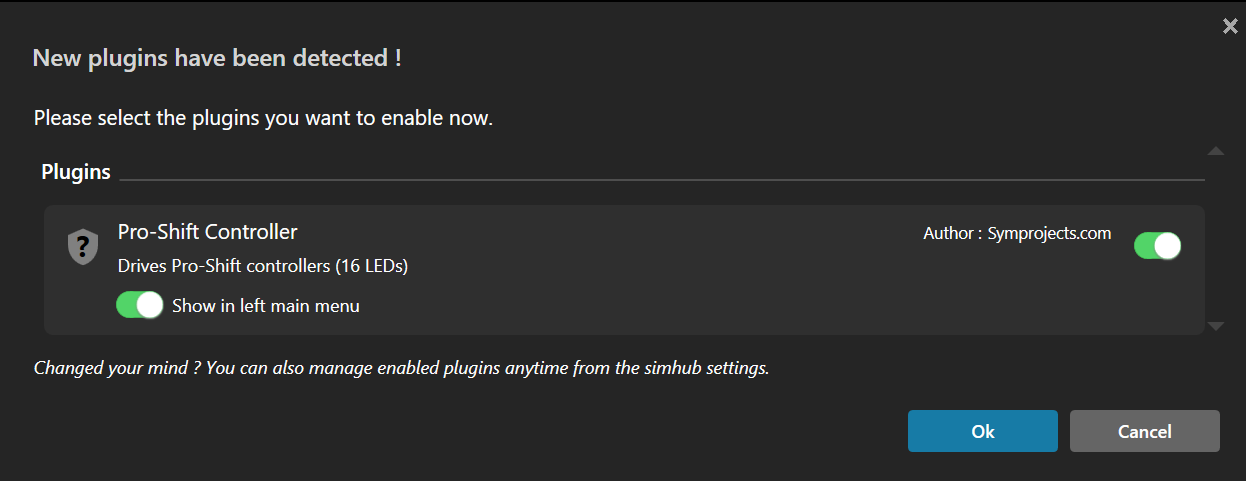
SimHub asks to enable the new plugin: switch it on and click Ok (click the picture to enlarge).
If you clicked Cancel by mistake, you can enable the plugin later from SimHub's Settings.
A controller must be driven by one program only. If SimDash keeps running alongside SimHub, for example because it controls other devices, disable the Pro-Shift plugin in SimDash. Otherwise SimDash and SimHub will both switch the LEDs.
4. Configure the controller
Click Pro-Shift in SimHub's left menu. Every Pro-Shift controller you plug in appears automatically in the list at the top, with a green dot when it is connected. Select a controller to configure it and its 16 LEDs.
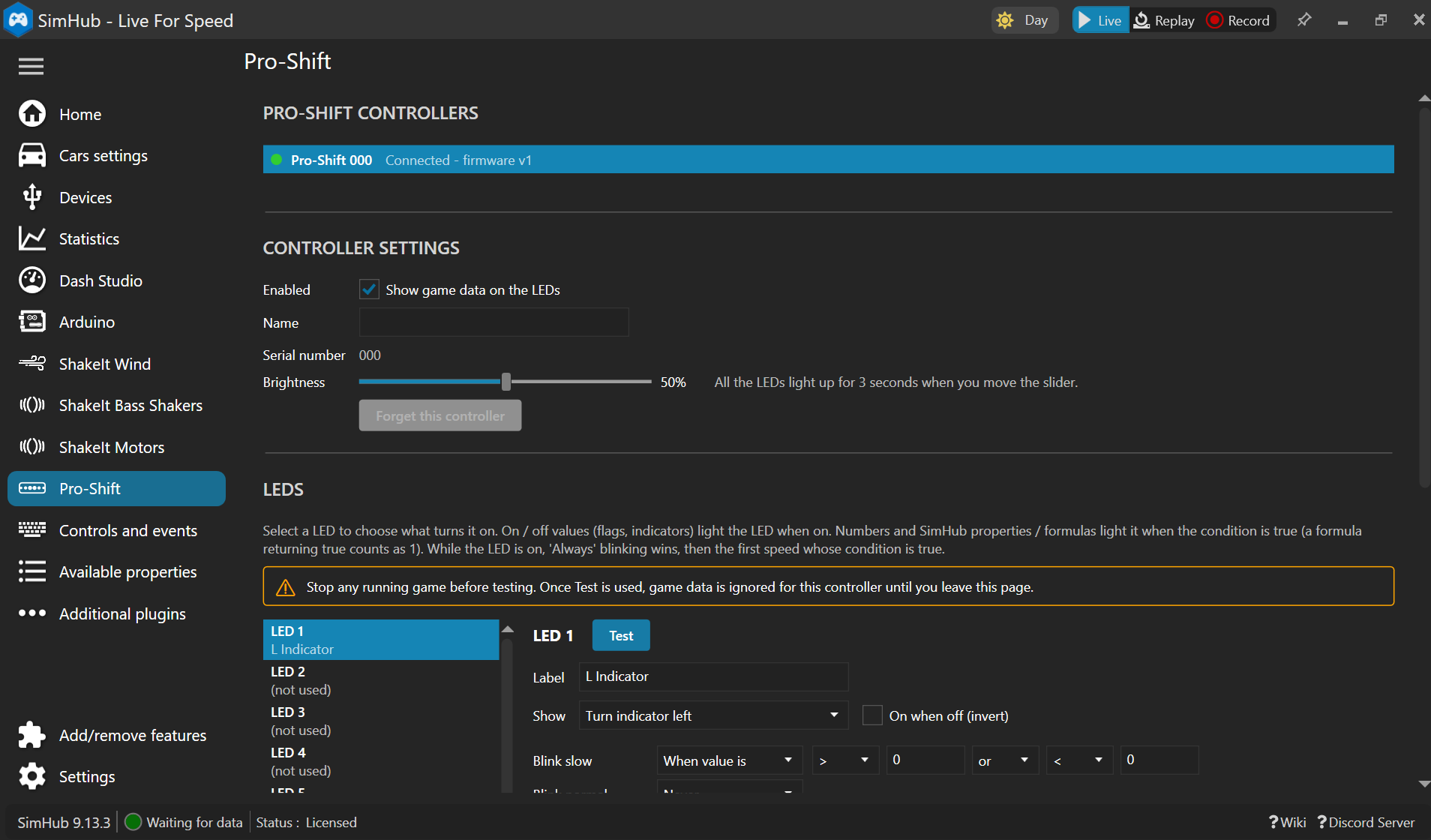
Controller settings and the LED list (click the picture to enlarge).
If you have used the Pro-Shift with SimDash, you will find the same options for every LED: what turns it on, its condition and its blinking. In addition, a LED can follow any SimHub property or the result of an NCalc or JavaScript expression.
Controller settings
- Enabled: when ticked, the LEDs follow the game. When unticked, they stay off.
- Name: give the controller a name, useful when you have more than one.
- Serial number: identifies the controller. Each controller keeps its own settings.
- Brightness: from 0 to 100%. When you move the slider, all 16 LEDs light up for 3 seconds, so you can judge the new brightness.
- Forget this controller: removes a controller you no longer use from the list (available only while it is unplugged).
When no game is running, the LEDs are off. They are also switched off when SimHub closes.
5. Configure the LEDs
The LEDs section lists the 16 LEDs. Select one to change its settings on the right; the list shows, under each LED, its label or what it shows.
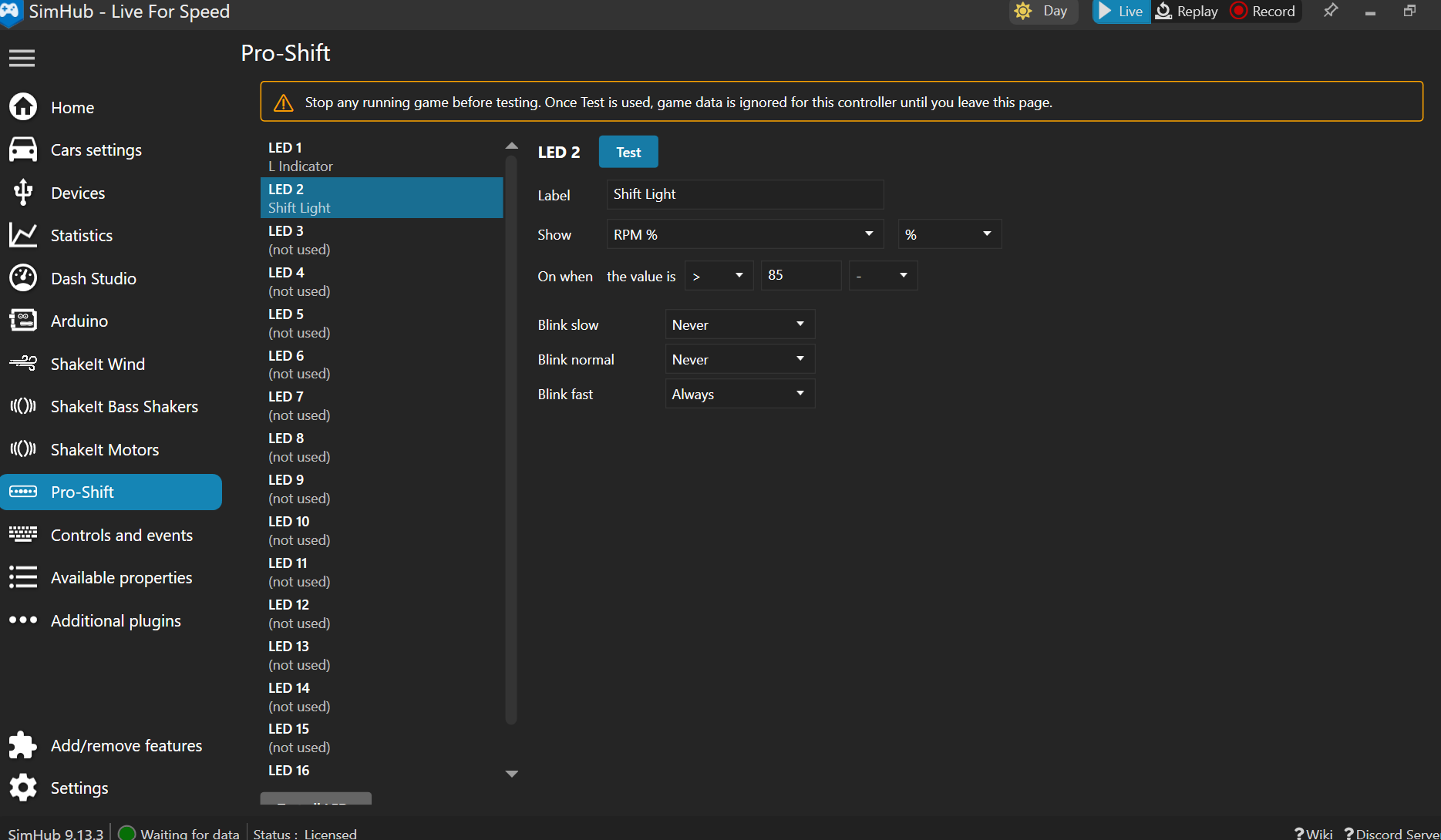
LED 2 used as a shift light: on above 85% of the maximum RPM, blinking fast (click the picture to enlarge).
- Label: an optional name, for example "Shift light" or "Pit limiter", to recognise the LED in the list.
- Show: what turns the LED on, grouped by category (car, engine, race, weather, tyres and brakes, indicators, SimHub), with its unit when the value has one (km/h or mph, litres or gallons, °C or °F, bar, psi or kPa...). The plugin converts the game's values to the unit you choose.
- Test: lights only that LED, so you can find it on your panel. Test all LEDs, under the list, lights all of them.
When the LED is on
- On / off values: race flags (green, yellow, blue, white, black, orange, checkered), ABS, traction control, pit limiter, in pit lane, ignition, engine running, shift light (the car's redline in SimHub), turn indicators, hazard lights, spotter left / right, handbrake, fuel alert, DRS available / active. The LED is on when the value is on. Tick On when off (invert) for the opposite.
- Numbers (RPM, RPM %, speed, gear, throttle, brake, fuel, temperatures, pressures, position, laps, tyres...): the LED is on when the value meets a condition, for example RPM % > 85. You can add a second test with and / or, for example water temperature < 60 or > 105. The gear counts N as 0 and R as -1.
Blinking
While a LED is on, it can blink at three speeds: slow, normal and fast. For each speed choose Never, Always, or When value is followed by a condition. Always wins; otherwise the first speed whose condition is true is used. For example, a LED on from 6000 RPM that blinks fast from 7500 RPM.
Using a SimHub property or an NCalc expression
Choose SimHub property / formula in the Show list, then click EDIT. SimHub opens its own property picker, the same one used in Dash Studio. You can:
- pick any property from the list, including game-specific values (for example battery, AdBlue or brake air pressure warnings in truck simulators) and properties provided by other plugins;
- write an NCalc expression, for example:
[DataCorePlugin.GameData.Rpms]
[DataCorePlugin.GameData.Fuel] < 5 and [DataCorePlugin.GameData.SpeedKmh] > 0
[DataCorePlugin.GameData.Rpms] / [DataCorePlugin.GameData.MaxRpm] * 100 - or switch the editor to JavaScript.
The result must be a number, or true / false (true counts as 1, false as 0). The LED uses it like any other number: set the condition, for example = 1 for a true / false formula, or > 90 for a percentage.
Once you press a Test button, the plugin ignores the game's data for that controller, so the tested LED stays lit. The LEDs follow the game again when you leave the Pro-Shift page in SimHub.
Quick start: a 6-LED shift light
- Stop the game and open the Pro-Shift page. Press Test on each LED to find it on your panel.
- For LEDs 1 to 6, choose RPM % in Show, with the conditions > 70, > 75, > 80, > 85, > 90 and > 95.
- On each of them, set Blink fast to When value is > 97: all the LEDs flash when it is time to shift.
- Use the other LEDs for warnings: Pit limiter, ABS, Traction control, flags...
- Adjust the brightness, leave the page and start the game.