
Adding a gear indicator to SimHub
This guide explains how to add and configure a GI Max gear indicator in SimHub, so the display shows the gear you are in with any game supported by SimHub.
The GI Max is a USB gear indicator designed for racing simulators, with a bright red 50mm × 55mm display. Once it is set up in SimHub, no other software is needed to drive it.
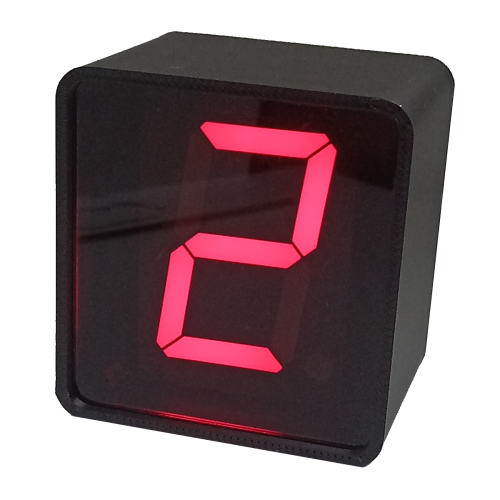
What you need
- A GI Max gear indicator (the version with enclosure works the same way)
- A Micro-USB cable (the GI Max uses Micro-USB, not USB-C). Make sure it is a data cable, not a charge-only one
- A Windows PC with SimHub installed
Step 1: Connect the GI Max
Plug the Micro-USB cable into the connector on the back of the GI Max, and the other end into a USB port on your PC.
Step 2: Enable the Devices plugin in SimHub
Click Settings, Plugins and then scroll down until you find the Devices plugin. Enable it, like in the picture below:

Step 3: Add the GI Max as a new device
Click the Devices menu on the left hand side, then Add new device and select the SymProjects devices that you would like to use with SimHub:

Step 4: Configure the GI Max
To enable support and configure the GI Max display, click the image of the display in the Devices screen:

From the configuration screen you can:
- Adjust the display brightness to suit different lighting conditions.
- Enable the shift light function, which makes the display blink when the engine reaches a specified RPM, helping you shift at the optimal moment.
Step 5: Start a game
Launch any game supported by SimHub and start driving. The GI Max will show the current gear in real time.
Using SimHub and SimDash together
If you use SimHub and SimDash at the same time, in SimDash you should disable the plugin for the GI Max, or the two programs will conflict with each other.
Troubleshooting
- The GI Max does not appear in SimHub. Check that the Devices plugin is enabled (Step 2) and try a different USB cable. Some Micro-USB cables carry power only and cannot transfer data.
- The display is not showing the gear. Make sure SimDash is not running with the GI Max plugin enabled, and check that the game you are playing is supported by SimHub.
- The display is too bright or too dim. Change the brightness in the GI Max configuration screen (Step 4).
Frequently asked questions
Do I need SimDash to use the GI Max with SimHub?
No. SimHub can drive the GI Max on its own. SimDash is only needed if you also use other SymProjects hardware that relies on it.
Which games work with the GI Max in SimHub?
Any game that SimHub supports. See the SimHub website for the full list of supported games.
Do other GI Max models work with SimHub?
Yes. The GI Max with enclosure and the GI Max Matrix are also compatible with SimHub.
Does the GI Max come with a USB cable?
A cable is not included by default, but you can add one when ordering for a small additional cost. Any standard Micro-USB cable also works.